We all have weekly ritual parts of our job that are always the same. We put them off. We brew an extra cup of coffee before starting. We come through the other side of it no wiser or more engaged than before. That’s where to start with Claude as a collaborator. Not to take over the interesting creative work you actually care about, but with the rote thing you’re already half-resenting on Monday morning.
From One-Shot to Intern
Most people’s first real use of AI at work is as a one-shot feedback machine. You paste an email draft in and ask Claude to make it sound more professional. You paste a memo in and ask if it’s clear. You paste a job description in and ask what questions you should put to the candidate. One prompt, one answer, done. That’s a perfectly fine starting point, and it’s where almost everyone I know started, including me. For a lot of tasks, one-shot is all you ever need.
But there’s a ceiling on one-shot mode. It’s a decent freelance editor for sure, but more likely you want an intern to independently take over parts of your job, and you can review their performance.
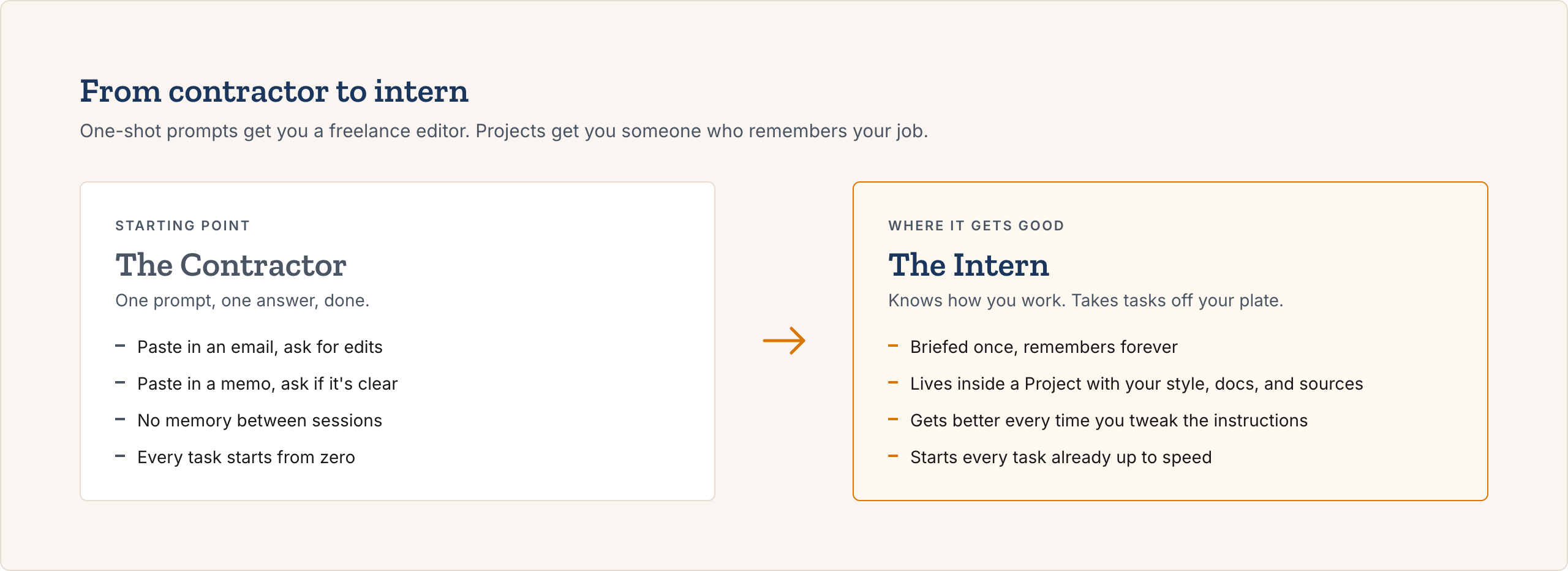
Once you want Claude the intern, not just Claude the contractor, you need two things.
Context engineering and iteration, without the jargon
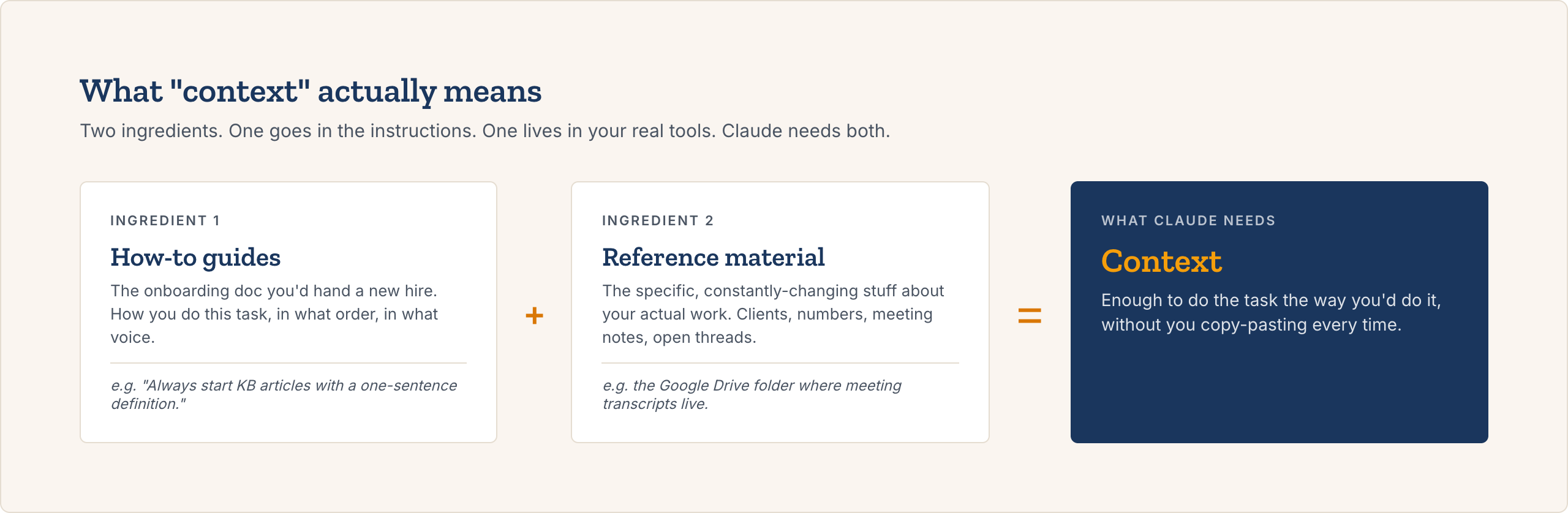
Context engineering just means writing down what you do, in clear instructions, so Claude can do the task the way you’d do it. It sounds intimidating. It’s not. If you were training a new hire on this task, what would you tell them in their first week? Write that down. Give it to Claude.
There are basically two types of context, and that instruction-manual version is only the first one. The second type is reference material: the specific knowledge Claude needs about the actual thing you’re working on. Who this client is. How a specific teammate likes to be pinged. What’s in last quarter’s numbers. What the open threads are with this vendor.
The instruction manual can’t cover any of that, because it’s situation-specific and it changes constantly. The best way to give Claude reference material is to connect it to the tools where you already store this stuff (your CRM, your meeting notes app, your team wiki) and give it a short guide to using those sources. AI meeting transcripts are gold for context engineering, so give Claude access to the folder where you’re storing them! The point is that you stop being the middleman copy-pasting reference material into every chat, and Claude just pulls from the source of truth on its own.
The iteration loop
Writing the first version is only half of it. The other half is the thing almost everyone skips: you keep updating it.
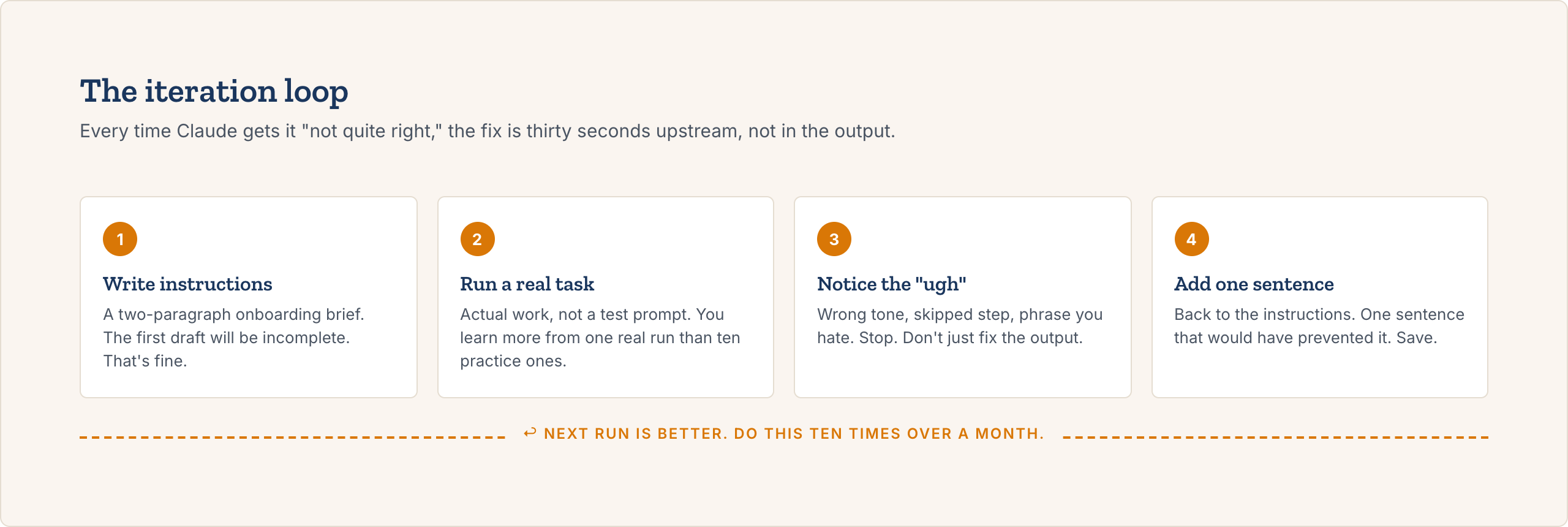
The first time Claude gives you back something where you think “ugh, not quite,” stop. Don’t just manually fix the output and move on. Ask yourself what instruction would’ve prevented that. Then go back to the system prompt and add one sentence. Thirty seconds of work. The next output’s better.
You must extend an incredible amount of grace to your little intern, Claude! Every time it messes up, you own it 100%. “I must not have explained that clearly, let’s work on my explanation for next time.” Not “this machine is stupid,” but, “I didn’t set you up for success.”
Do that five or ten times over a month and your system prompt ends up being a near-perfect description of how you want this task done. At that point the drafts Claude produces need almost no cleanup. You’re not prompting anymore. You’re delegating.
That’s the whole iteration loop. Context engineering is what you write the first time. Iteration is what you do every time Claude’s mistaken output reminds you that your instructions were incomplete.
Context Engineering + Iteration = AI that Works
Those two ideas are the entire game. Everything else in this guide is just the scaffolding Claude gives you to do those two things well: a place to keep your instructions (Projects), a way to write them, a way to hand Claude your actual working material (file uploads/connectors), and a way to iterate on the output itself. If you walk away remembering only “context engineering plus iteration,” you’ve got the whole thing.
A quick aside on the subscription question before we dive in. You can use Claude free at claude.ai, and it’s surprisingly capable for one-shot work. The $20/month Claude Pro tier is where Projects unlocks, and Projects is what you actually need for everything below, so if you’re trying to embed Claude in your real work, Pro is the right starting point. The free tier is fine for kicking the tires.
For the rest of this guide I’m going to assume you’re using Claude Pro and talk about how to actually use it.
Three parts of the Claude interface that matter for work
- Chat. The regular conversation window. Resets every time you start a new one. This is where one-shot work happens.
- Projects. Persistent workspaces that hold context across every conversation inside them. This is where your context engineering lives. You can upload core files that are always important directly into the Project, and share the Project with teammates.
- Connectors. The interface changes so frequently I won’t even try guessing what it looks like at the time you’re reading this: just ask Claude where to find it! The core idea hasn’t changed. Connectors provide outside resources and tools you sign in with, authorize to read your resources, and allow Claude to explore them when necessary. Things like Outlook, HubSpot, and Google Drive all have connectors.
If you only learn one of these, learn Projects. It’s the difference between using Claude like a search engine and using it like a colleague who actually remembers your job.
Projects: the upgrade that changes everything
AI moves fast, and there was a time before Projects existed! An archaic, murky time full of copy-pasting.
Before: Every morning I opened Claude, pasted in a description of the project I was working on, pasted in the last email I was trying to reply to, and then asked my question. Every morning. Same preamble. Same copy-paste. I was spending the first three or four minutes of every Claude session just reloading context.
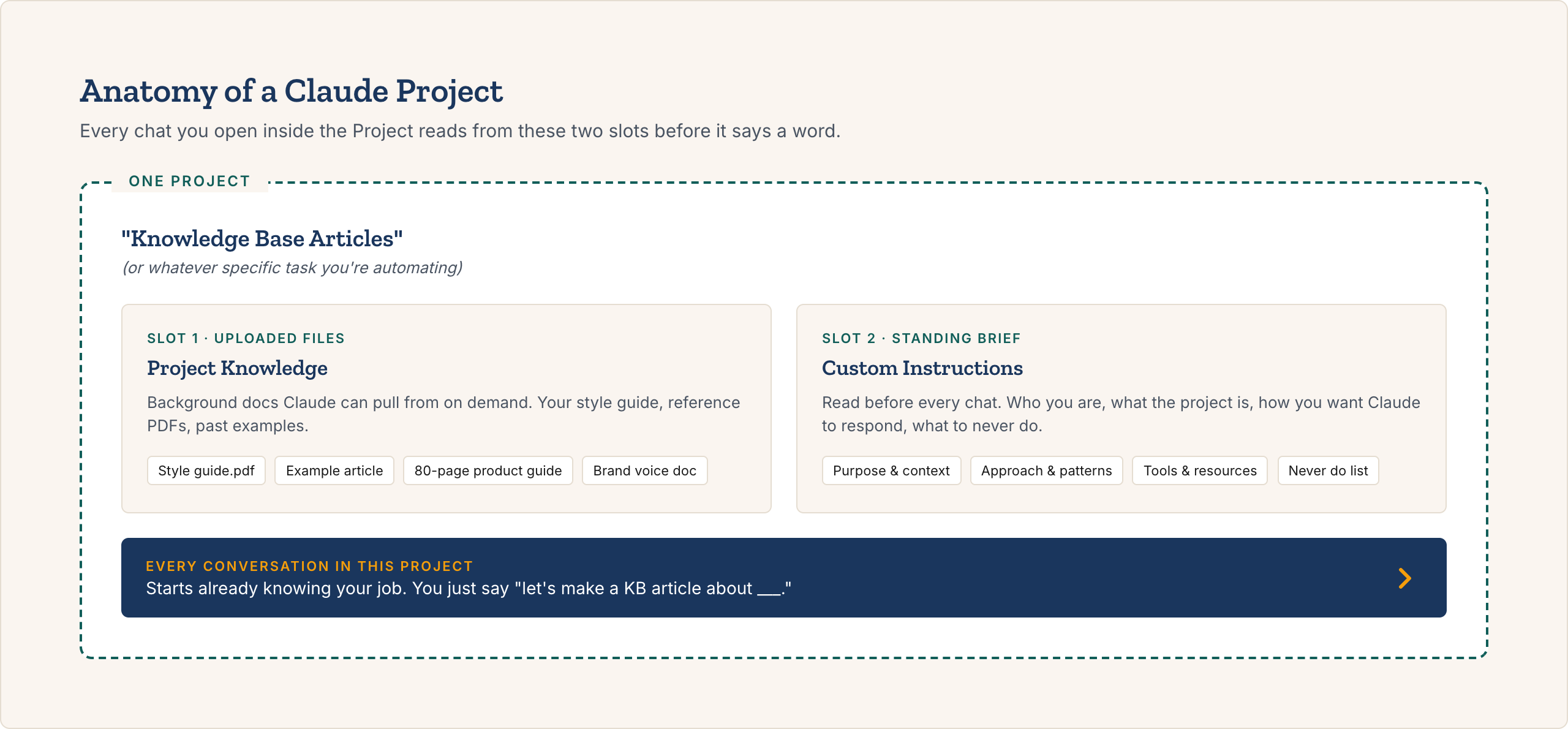
After: I made a Project called “Knowledge Base Articles.” I uploaded the internal template for a good help desk article, a few example articles, and a two-paragraph system prompt explaining what I was doing and what voice I wanted Claude to use. I connect it with my company’s core 80-page PDF guide on how to use your application. Now I open the Project, tell it “let’s make a knowledge base article about ____”, and Claude already knows what to do. After the first few articles were written, and the instructions changed to avoid the first mistakes, the output became immediately useable without further edits.
That’s what Projects do. You brief Claude once. Claude remembers for as long as the Project exists. A Project is the container your context engineering lives in.
How to set up your first Project
Go to claude.ai or the Claude desktop app, click “New Project” in the left sidebar, and name it something specific. “Work” is too broad and you’ll end up not using it. “Q2 Board Prep,” “Client Communications for [Name],” “Performance Review Cycle” are specific enough to be useful.
Inside a Project, there are two things you don’t have in a regular chat:
- Project Knowledge. The upload area for background docs. This is where you put your style guide, your role summary, a client brief, a list of stakeholders, past work you want Claude to match in tone.
- Custom Instructions. The standing brief Claude reads before every single conversation in that Project. This is where your core set of instructions should go that matter to every chat you open in the project. We’ll get to it in a second.
One Project per task, not one big Project for everything
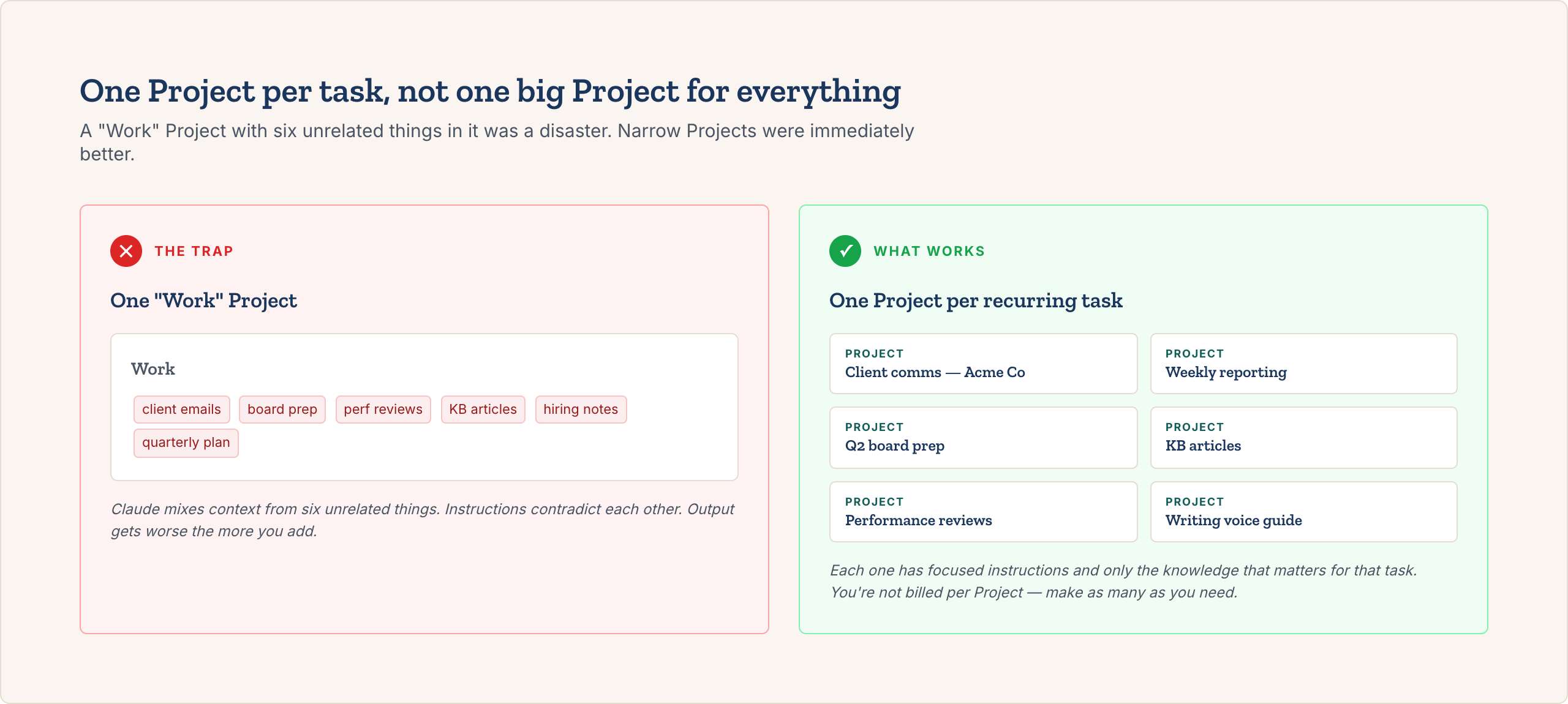
I tried having a single “Work” Project for like two weeks. It was a disaster. Claude had context from six unrelated things and kept mixing them up. I switched to one Project per domain and it got immediately better.
Patterns I use and recommend:
- One Project per client or account (with their preferences, past deliverables, and tone)
- One Project per recurring process (weekly reporting, monthly close, quarterly planning)
- One Project for a specific technology build or launch
- One Project for job hunt stuff if you’re in that mode (resume, target roles, notes on what to emphasize)
- One Project for writing where you upload your personal or brand voice guide, to act as a personal editor regardless of the context
You’re not billed per Project. Make as many as you need.
Instructions: context engineering in one text box
The Custom Instructions field in a Project is a single text box, and what you write in that text box is your instructions for the task, the standing brief Claude reads before every single conversation in that Project. It’s one of the highest-leverage things in a project, and it’s tough to write a good one your first try. Luckily, you have help: Claude!
We call this move “prompt for prompt” and it’s very effective. Rather than starting with a blank page, start a new chat with Claude and explain that you’re trying to write a good instructions prompt for this project, and what the project is all about. Tell Claude to interview you and ask probing questions so you can get to a comprehensive first draft together.
Here’s what a good instructions prompt actually needs:
- Who you are and what you do
- What this specific Project is for
- How you want Claude to respond (format, tone, length)
- What Claude should never do
Here’s a bit of the project prompt from my actual work at DualEnroll, making new knowledge base articles to help users get answers about using the platform:
Purpose & context
Ryan works on help desk documentation for DualEnroll, a dual enrollment platform that connects colleges and high schools to manage student course registrations. His primary role involves creating comprehensive knowledge base articles that address common confusion points and questions from educational administrators, counselors, and students using the system. The documentation targets non-technical users who may be hesitant about automated workflows, requiring clear explanations that build trust and understanding.
The work focuses on translating complex technical processes into accessible guidance for college administrators, high school counselors, and students navigating dual enrollment registrations. Success is measured by reducing confusion around system features and empowering users to effectively support students through the enrollment process.
Approach & patterns
Ryan’s documentation approach emphasizes practical, scenario-based guidance that addresses real user pain points. Articles are structured to build confidence in automated systems by providing transparency and clear explanations of what’s happening behind the scenes.
The writing consistently follows help desk best practices: starting with clear definitions, providing step-by-step instructions, including FAQ sections that address common concerns, and offering ready-made responses that administrators can use with students and parents. Content is organized to be easily searchable and cross-referenced within the broader knowledge base system.
Tools & resources
Ryan works within HubSpot for knowledge base management and uses markdown formatting for easy content transfer. The documentation system includes established conventions for article structure, tone, and cross-referencing that ensure consistency across the knowledge base. Articles are designed to integrate seamlessly with DualEnroll’s existing help documentation ecosystem.
And that’s it! I give Claude instructions, guidelines, and pointed it to the tools it has available. I also uploaded some PDF reference guides on how to use the application so it had a source of knowledge to pull from.
Remember: Context = How-To Guides + Reference Materials
File uploads: stop describing documents to Claude
Claude can read:
- PDFs (contracts, reports, research papers)
- Word and Google Docs (paste from Google Docs or export as docx)
- Spreadsheets (Claude reads the data, though formulas get flattened)
- PowerPoint and Keynote exports
- Images, including screenshots of dashboards, whiteboards, handwritten notes
- Plain text, CSVs, and code files
Ideally, though, you give Claude access to the actual sources and don’t need to drag documents into the chat ever again. If you can connect it with your company’s OneDrive, give it a clear document in the project knowledge about how to navigate the OneDrive, and it can find what it needs from there. Making this document is a good exercise for Claude! Always collaborate with Claude on making its own instructions, when possible.
Mistakes I kept making for longer than I want to admit
Using chat for everything instead of Projects. Regular chat resets. If you’re doing any repeated work, you should be in a Project. The name is a bit misleading, and I thought Project meant a big deal project. It doesn’t have to! I was in chat-only mode for probably my first two months and I wasted a lot of time re-briefing Claude on things it would have already known from a shared project.
Writing a lazy system prompt. “You are an expert marketer. Help me with marketing work” isn’t a system prompt. That’s a hope. Your system prompt should be the two paragraphs a new hire would feel great about having on day one. If you got hired to a job and your onboarding manual just said, “you are an expert, make no mistakes,” you would probably start looking elsewhere immediately!
Working on improving the specific output rather than improving the instructions. The first response is a starting point. Ask Claude to revise on the same thread, and once you get to a better product, always always always go back and update the instructions that led to here with your learnings from this session!
The smallest version of this you can try today
The thing that works for almost everyone I talk to is: pick one repeated task, make one Project for it, write a two-paragraph system prompt, and run one real work task through it. Focus on improving the instructions, not necessarily on improving the actual first result. You can either always be editing their output, or edit the instructions to the point where you don’t have to anymore.
You’re not trying to figure out everything Claude can do. You’re trying to find one task where Claude saves you real time, and then do it again tomorrow. That repetition is the thing that makes it stick. The habit is what changes your week.
Where to go next
If you want to see how other people in your field are setting up their Projects right now, that’s most of what we do in the weekly MVP Club coworking sessions. Somebody shares their screen, we look at their project setup, we steal each other’s setups. The MVP Club community is where that’s happening.